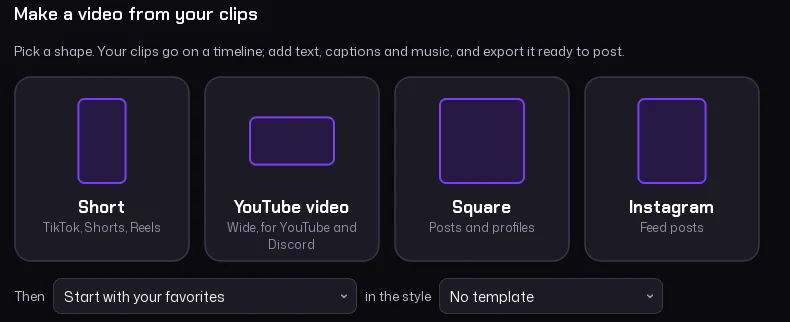
Pick a shape
A Short (9:16) for TikTok, Shorts and Reels, a YouTube video (16:9), square (1:1) or Instagram (4:5).
Start empty, with your favorite clips, or with your newest four. Any clip's right-click menu also has Add to the Studio.
 debug
Clip your call and play it back with effects, for Discord and games with voice chat. Press F9 and everyone hears the last seconds again, then change that clip, cut it and save it. Press F8 while you play and the last 30 seconds become a video clip. Then turn your clips into a Short or a video in the Studio.
It's free to download and unlocks for life when you invite 5 people to the debug Discord, or with a debugvox key. Get it with the button below, or from the Apps tab in the debug loader.
By downloading you agree to the Terms.
Your download has started. If Windows warns you, see step 2 below.
debugvox is for Windows. Open this page on your PC to download it.
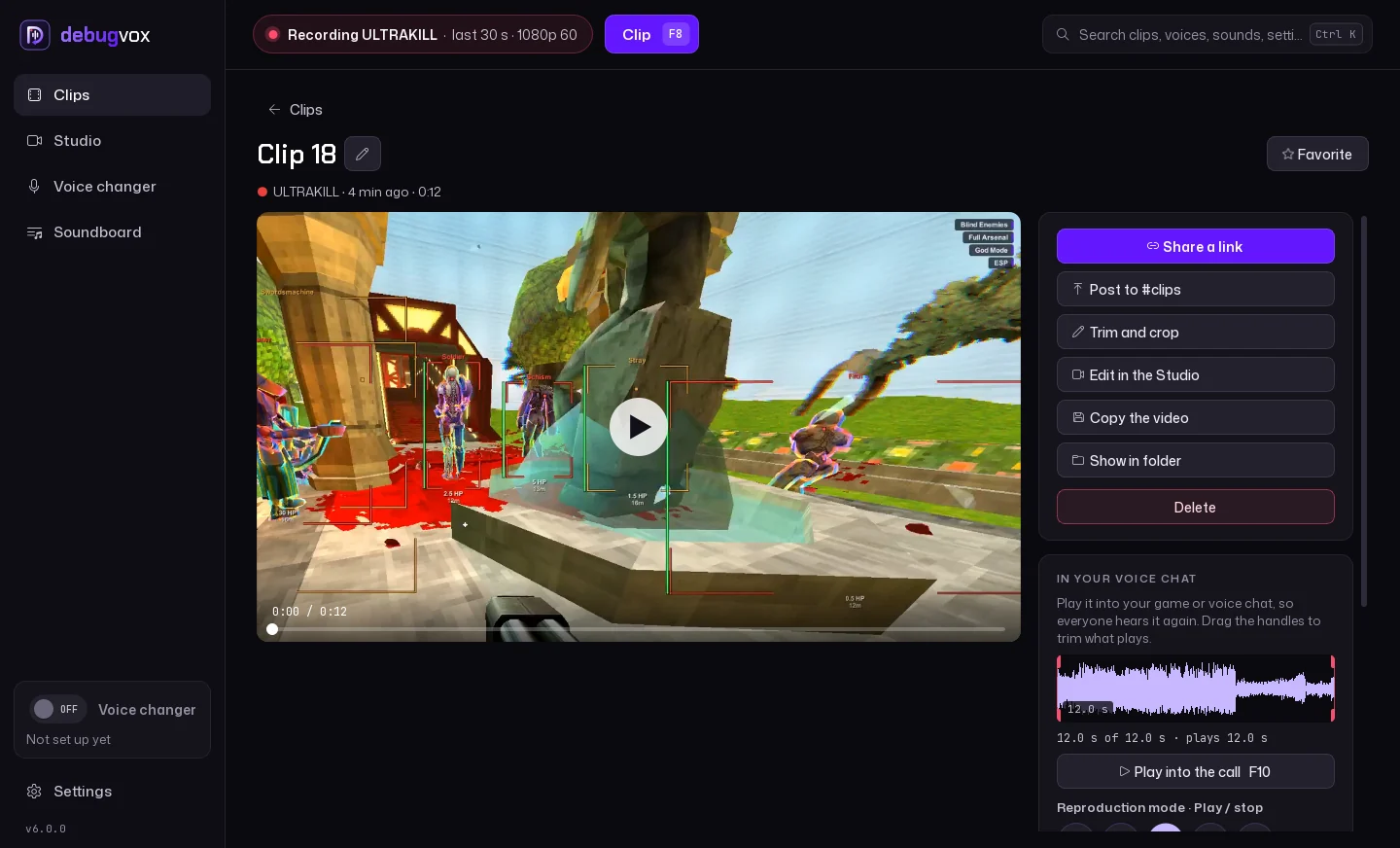
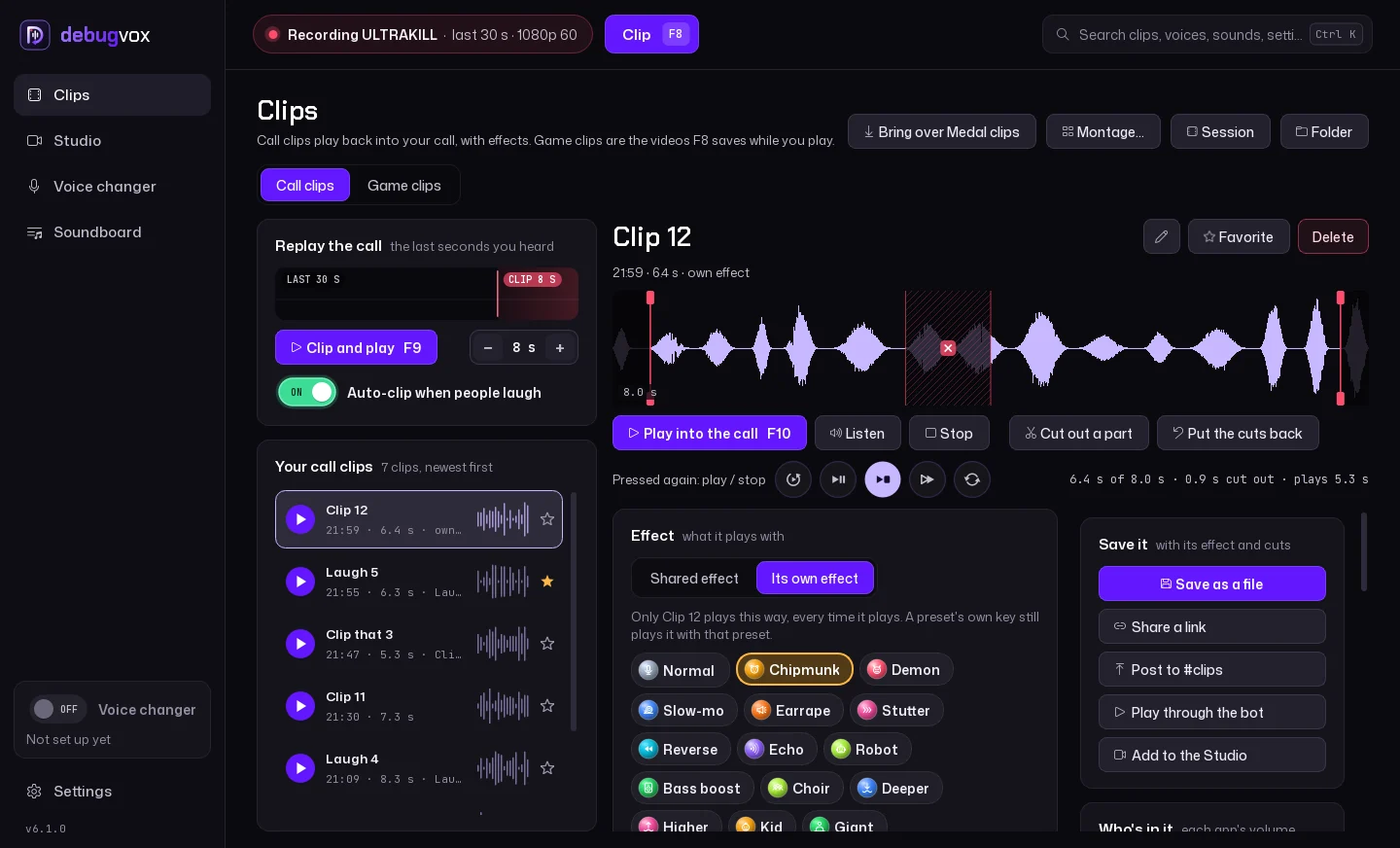
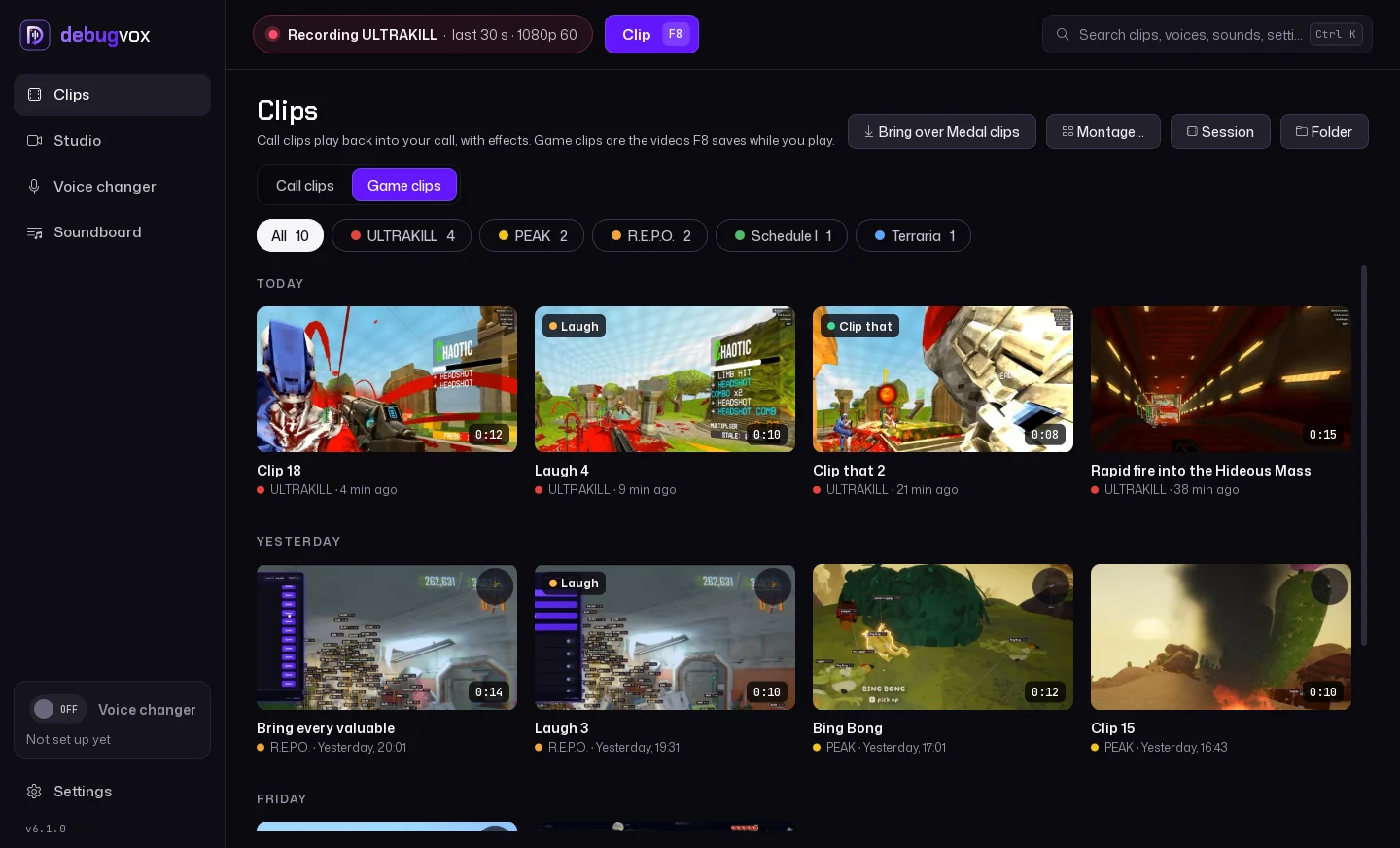
debugvox opens on your call clips. Press F9 in a call and everyone hears the last seconds again, and the clip waits here for you to change it. Your game clips are the second tab: press F8 while you play and the last 30 seconds become a video clip, kept by day, with a filter for each game.
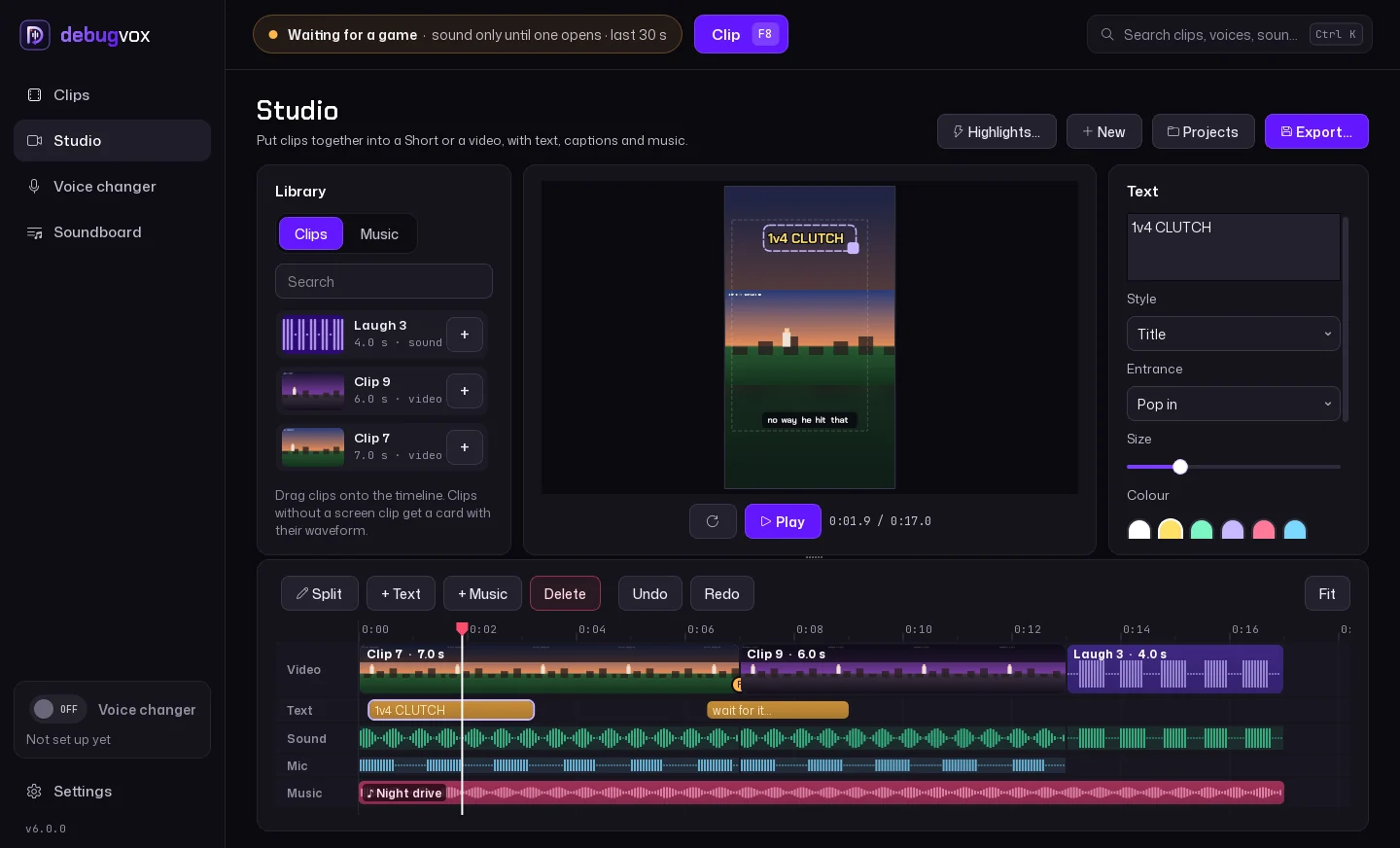
debugvox can turn your clips into a finished video itself. Put them on a timeline, add text, captions and music, and export it ready to post. 5.1 adds slow motion, speed, voices on clips, looks and templates.
A Short (9:16) for TikTok, Shorts and Reels, a YouTube video (16:9), square (1:1) or Instagram (4:5).
Start empty, with your favorite clips, or with your newest four. Any clip's right-click menu also has Add to the Studio.
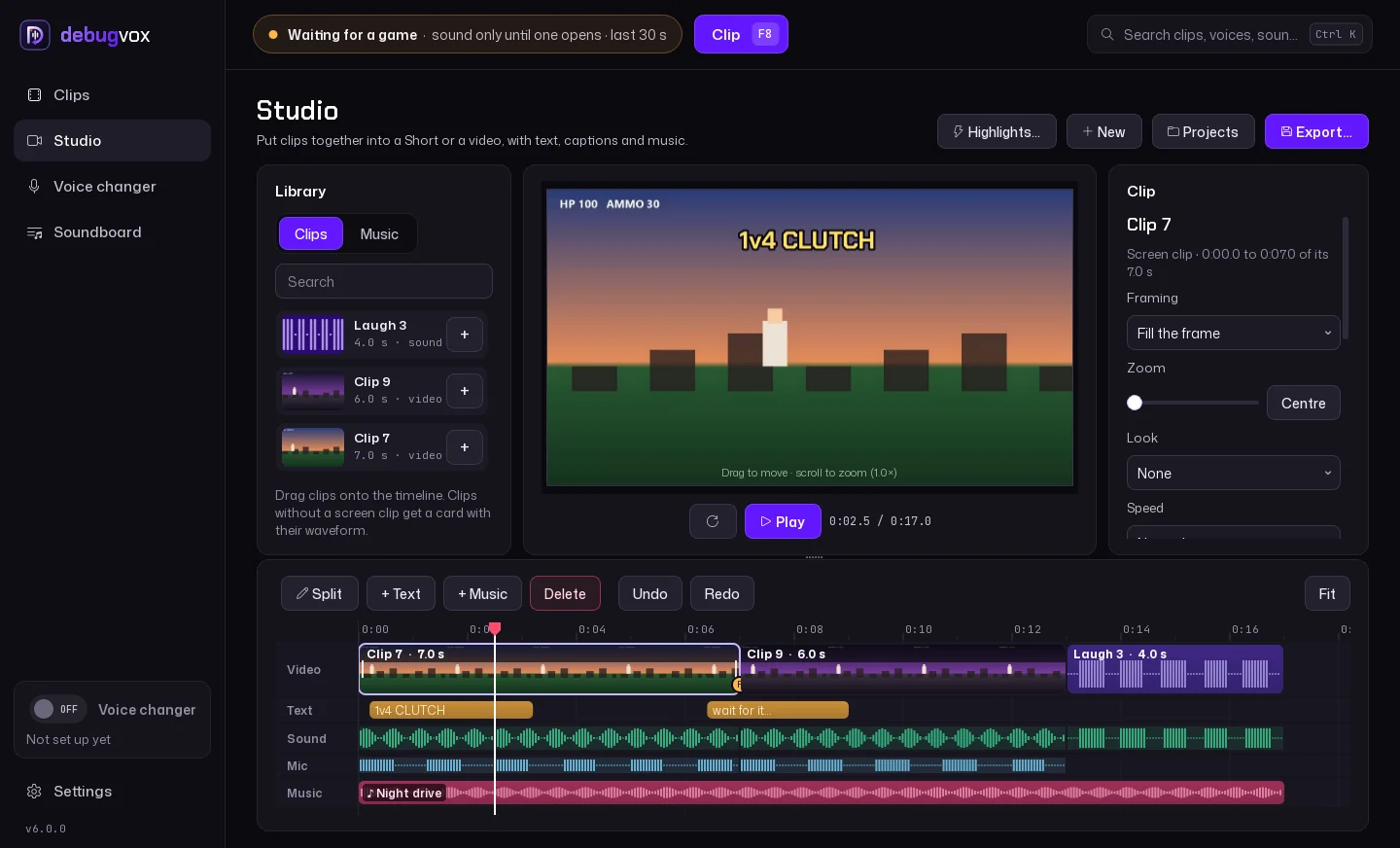
Rows for video, text, game sound, your mic and music. Drag clips in from the library, put them in any order, trim them by dragging their edges and split them at the playhead.
Undo and redo work on all of it.
It looks exactly like the export. Drag text on it to place it, and drag or scroll a clip to choose what's in the frame.
A wide game clip in a tall video can fill the frame or sit over a blurred copy of itself.
Four styles (Title, Box, Neon, Plain), five entrances (Pop, Slide up, Type out, Fade, None), six colours and any size.
Captions put what's said in your clips on screen as it's said. They come from debugvox's transcripts, which run on your PC.
Add a song from a file or a sound from your soundboard. It turns down by itself while your clips have something going on, and fades in and out.
Between clips: a cut, a flash, a fade through black, a zoom punch, a dissolve, a whip pan, a push up or a glitch, each with its own sound (you can turn those off). Voice chat clips with no screen clip become a card with their name and a waveform that plays along.
An MP4 at 1080p or 720p, at 30 or 60 fps. It's copied so you can paste it, or shared as a link that plays in Discord.
Projects save themselves on your PC and open again next time.
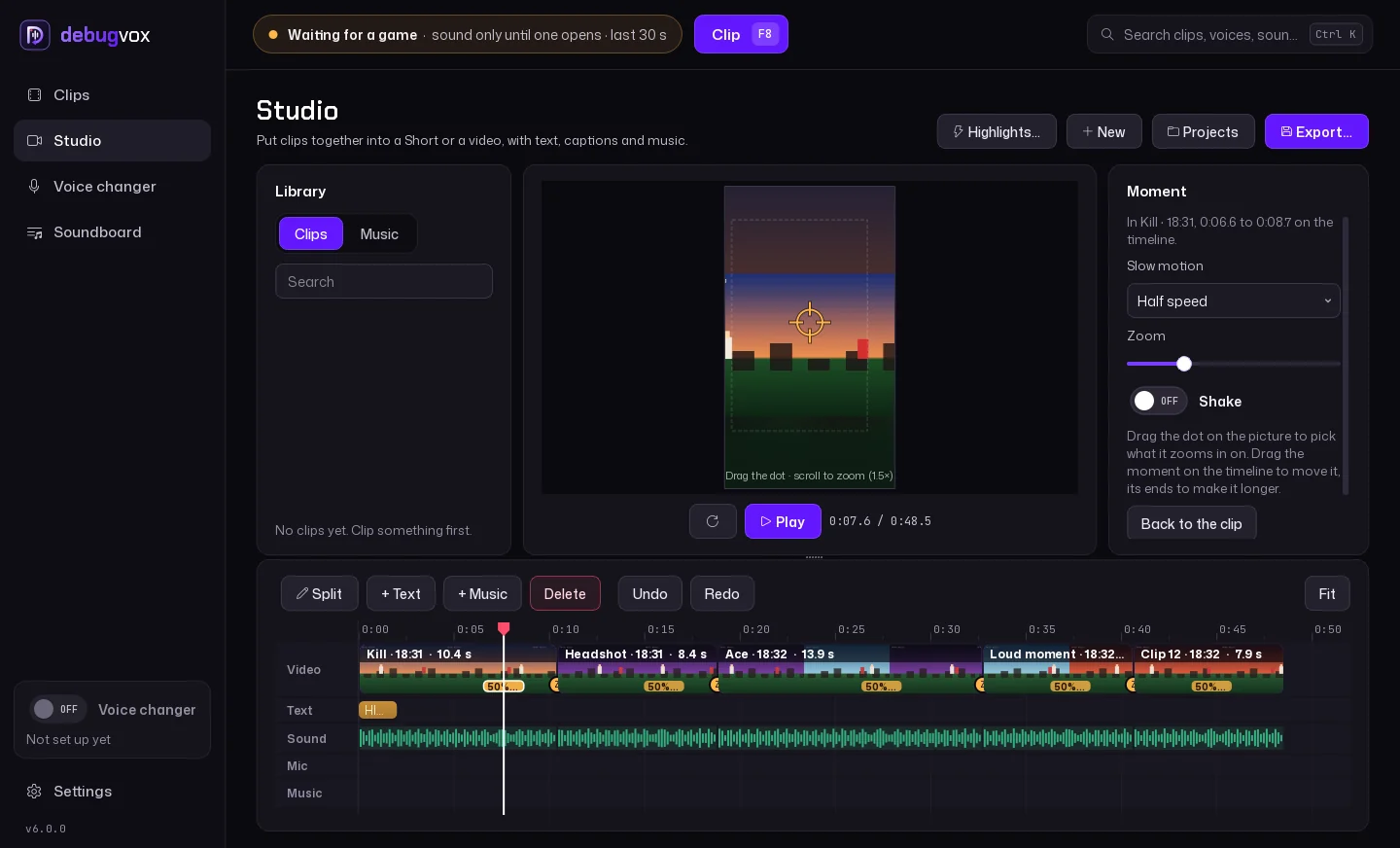
Put the playhead on the best bit and press M: a moment eases into slow motion (75%, half or a quarter speed), zooms in on a spot you drag on the preview, and can shake. Drag its amber band to move it, or its ends to make it longer.
Any clip can also play from 0.25x to 3x. Slowed-down sound keeps its pitch, or turn on Deeper slow-mo for the deep, slowed-down sound.
Put any of your debugvox voices on a clip: on your mic only when the clip has your mic on its own track, or on all of its sound.
Looks: Vivid, Black and white, Warm, Cool, Dreamy glow and Old film.
Highlight, Funny moment, Fast montage and Clean story find the loudest moment in each clip and build around it: slow motion, zooms, transitions, a title. Pick one on the start screen or in the project settings.
Your own edits stay, and Ctrl+Z takes a template back off.
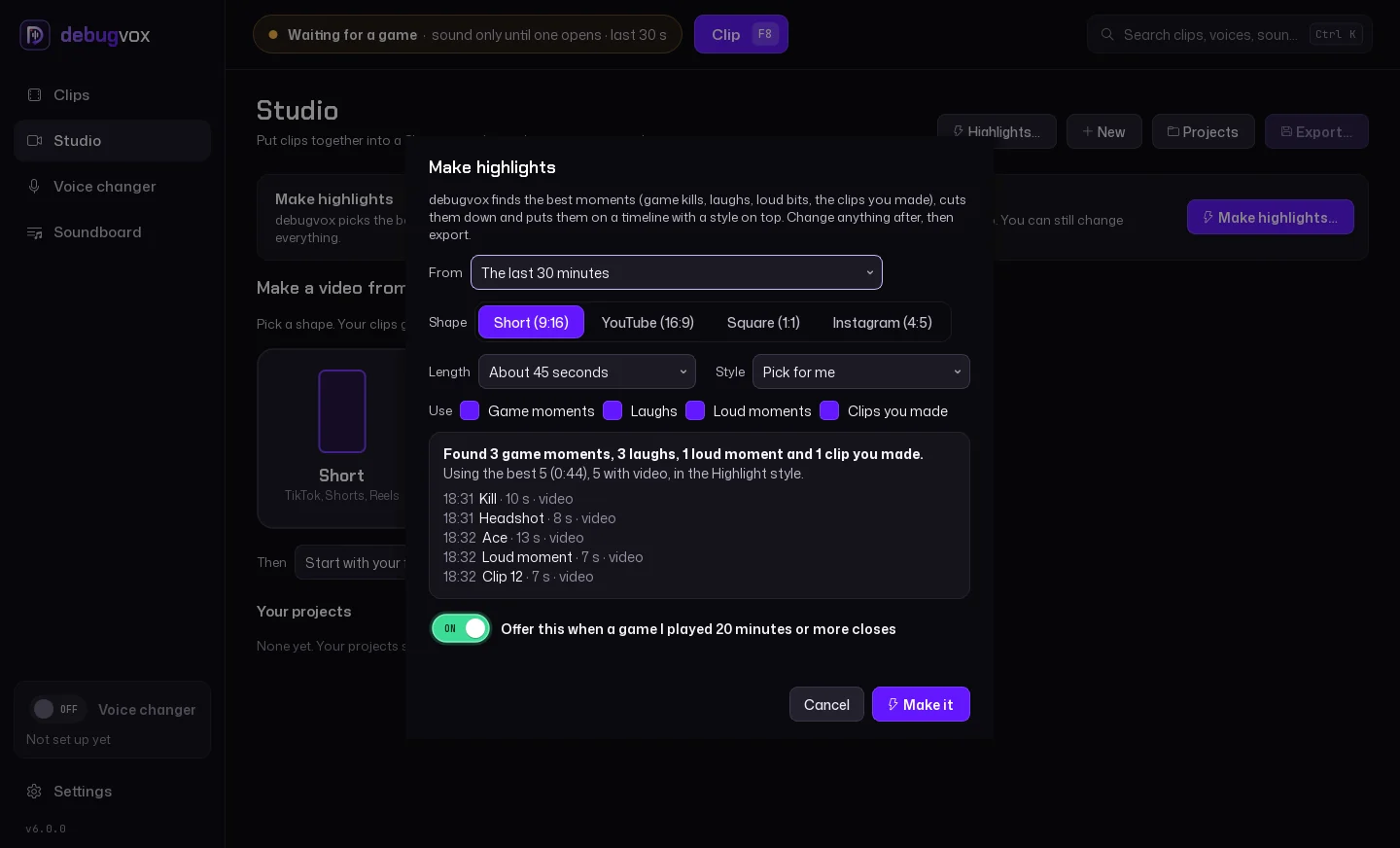
Press Highlights in the Studio and pick what to make them of: the game you just played, the last half hour, today's clips or your favorites. debugvox scores what it marked while you played (kills, aces, laughs, loud bits, the clips you made) and keeps the best for the length you pick, from 30 seconds to 3 minutes.
Each moment is cut around what happened, in the order it happened, with a style on top, and the slow motion lands on the kill itself. It's a normal Studio project, so change anything, then export.
When a game you played for 20 minutes or more closes, debugvox offers to make them.
Turn on and the video on the Clips page's Session tab and debugvox keeps your screen, your mic and your game's own sound for the session, on your PC (about 2 GB an hour at 720p). Highlights and clips taken from the session then have their picture.
debugvox keeps the last 30 seconds of your call. Press F9 and the last few seconds play into your mic for everyone, with effects like pitch, speed, echo and reverse.
It's what debugvox started as, and it's first again: the Clips page opens on Call clips, where you change each clip.
Each app you hear is kept on its own track: your game, Discord, your music. In a clip, turn any of them up or down, or leave an app (music, say) out of new clips.
When the call bursts out laughing, debugvox clips it by itself. A small model on your PC notices the laughs.
When anyone in the call says “clip that”, it's clipped. Windows' own speech recognition listens on your PC, for those words only.
Game moments clip themselves too: aces and wins in Counter-Strike 2, Dota 2 and League, full combos in Rhythia, and in debug's games the mods tell debugvox when you extract, beat a boss or hit a big rank.
Off until you turn it on. debugvox keeps what you hear for the last hour (15 minutes to 2 hours) on your PC, about 35 MB an hour, with laughs, loud moments, your clips and game moments marked.
Press Session on the Clips page, drag over any part and clip it, long after the replay's last 30 seconds.
Optional, and English only. Every clip is written down on your PC, names itself from what was said, and can be found by searching its words.
The speech model is a one-time download the first time you turn them on.
Share a link and a clip plays right in Discord. Links last 30 days.
Post to #clips and the debug bot posts it in the debug Discord's #clips channel, with the game it's from, for everyone to watch and react to.
Play through the bot in the debug Discord and the bot plays a clip or sound into your voice call, no VB-CABLE needed. Or send a clip or sound to a friend in your voice channel who has debugvox open.
debug's staff can see clips that go through debug this way. Clips that stay on your PC never reach us.
Any clip becomes a short MP4 with its waveform playing, its name and the debugvox logo, copied so you can paste it into a chat.
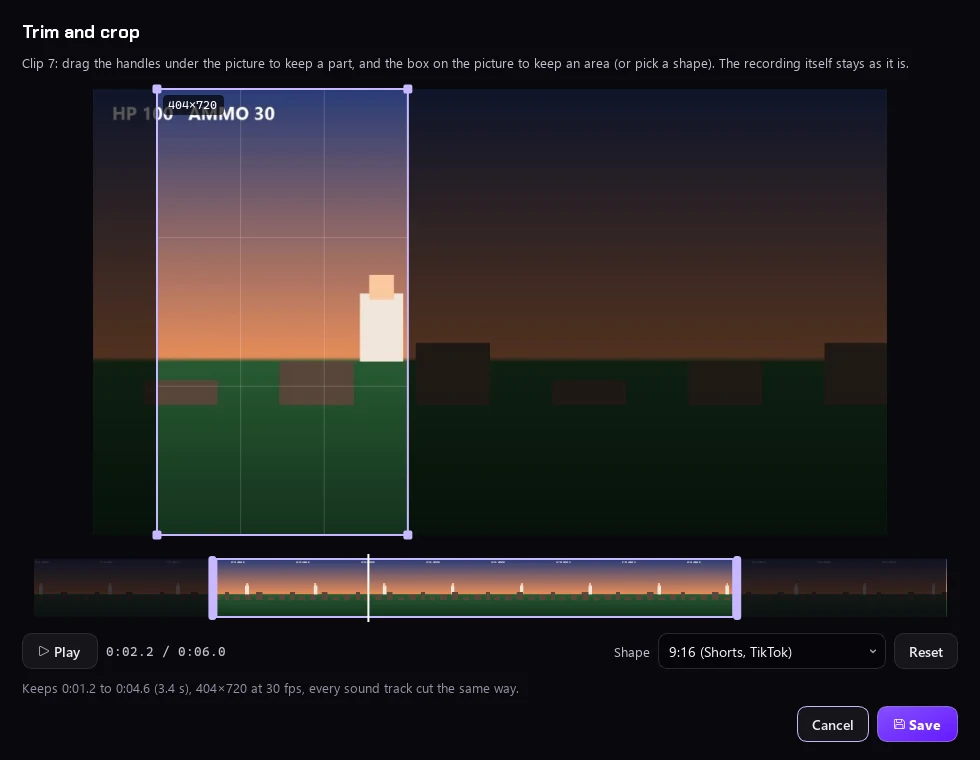
Pick a few clips and a montage makes one tall video (1080x1920) with each clip's name, its screen clip if it has one, and captions.
While a game is open, debugvox keeps the last seconds of its window, so every clip you make while you play comes with video, as one MP4 with the sound. Nothing is recorded when no game is running. Turn on screen clips to keep your screen all the time.
Switching takes a minute, and your clips come with you.
debugvox finds the clips Medal saved on your PC and brings them over as favorites, with their video. Medal's files stay where they are.
F8 saves a clip, the way Medal's does. F9 clips and plays it into the call. Both can be any key you like.
Medal's editor keeps the game, your mic and Discord apart. debugvox keeps every app you hear on its own track: the game, Discord, music, a video in your browser.
Medal's auto-clipping lists 15 games, read from their match data. debugvox reads Counter-Strike 2, Dota 2, League and Rhythia, hears laughs and “clip that” in any game, and in debug's games the mods tell it what happened.
Auto-generated subtitles are part of Medal Premium. debugvox writes clips down on your PC for free (English, a one-time download).
Medal has its own cloud and feed. debugvox keeps clips on your PC, shares a link that plays in Discord, and posts to #clips in the debug Discord, where your friends already are.
What Medal does is from Medal's own pages (features, auto-clipping and Premium), read on 7 November 2026.
Change your voice live as you talk, in Discord and in games with voice chat. Any voice can go on a hotkey.
Demon, Robot, Chipmunk and more, plus natural Deeper, Higher, Kid and Giant voices that sound like another person, not a chipmunk.
Changing your pitch adds about 24 ms of delay with a low voice and 13 ms with a higher one (it learns your voice).
Six original characters, Nova, Jett, Vex, Echo, Titan and Pixie, turn you into a whole other person while you talk. They run on your PC's processor, no graphics card needed, about a third of a second behind your real voice. Blend up to three and set pitch and size to make your own.
They were made for debugvox: none is a real person's voice, and debugvox can't copy anyone's voice. The AI model is a one-time download.
Make your own voice on the Voice page's Build tab: stack up to 12 of its 23 modules in any order and turn their knobs, from pitch shift and auto-tune to robot, echo, reverb and a speaker that sounds like a phone, radio or megaphone. With the voice changer on, every knob changes your voice live.
Start from one of 10 ready-made voices, press Surprise me, or use an AI voice as the base. Drag modules to reorder them, switch one off to compare, and undo. A built voice saves to your Voicebox with its own hotkey, and the same modules work on clips and sounds.
The Background module puts rain, a storm, wind, the ocean, a fire, an engine, a spaceship, a crowd or a café under your voice, getting quieter while you talk. debugvox makes all of them itself, no recordings.
Up to 8 knobs can be live knobs, turned with a MIDI controller, the overlay wheel or a Stream Deck. Knobs can wobble on their own, and a Macro module turns several at once.
Sound like you're on a walkie-talkie (with the squelch and click), in a space suit (with the beeps), in a helmet, a cave or a bathroom, on the phone or the radio, through a megaphone, underwater, behind a wall or in a stadium.
Made for proximity chat.
Auto-tune to a key, harmony voices (a third, a fifth, octaves or a choir) and a whisper effect.
Drag a dot instead of moving sliders: up is higher, right is bigger.
Share a voice as a short code that starts with DVX-, or on the debug Discord's voice board. Friends paste the code in, and can hear a shared voice before they add it.
Type something and it's said into your mic, in your current voice if you like, or in an AI voice.
Noise reduction from a small AI model that runs on your PC, so your voice never leaves it. There's also a noise gate, an EQ and a compressor.
Mic check records 5 seconds so you can hear yourself before and after debugvox.
AI voices use MeanVC2 (ASLP-lab), converted for ONNX by kiarina, Apache License 2.0.
Put sounds on hotkeys and play them into the call, at an even volume, with a trimmer to cut them down. Search free sounds from Freesound (CC0 and CC BY) inside debugvox and add the ones you like.
The voice keyboard plays a clip or a sound as notes on your keyboard or a MIDI keyboard, like a sampler.
Hold Alt+C in a game, point at what you want on the wheel and let go. On an Xbox-style controller, hold View and pick with the sticks. Or say it: "clip that", "demon voice", "play that again", "save that" and more, and make your own phrases.
The wheel has the voice changer, your voices, clip effects, every clip, sounds and places, and shows the voice and place you're using and what's playing.
Voice commands use Windows' own speech recognition on your PC, and they're off until you turn them on.
A small pill in the corner of your screen shows your voice and each clip you make.
Hotkeys can be keys, mouse side buttons or MIDI pads. Ctrl+K finds any setting, voice, sound, clip or action and takes you there.
Your settings, voices, hotkeys and sounds are backed up to your debug account by themselves (never your clips or videos), so a new PC gets your setup when you sign in.
Or save everything to one file in Settings, Backup, favorites and Studio projects included.
Scan a QR code and your phone becomes a soundboard with clip, sounds, voices and text to speech, and you can watch or save any clip on it. It works on any Wi-Fi or mobile data, through debug's server (nothing is kept there), or on your own Wi-Fi only if you'd rather.
Counter-Strike 2, Dota 2 and League of Legends tell debugvox what happens, through the feeds their makers built for this (Valve's game state integration, Riot's live client data). For Rhythia, debugvox reads its own replay and score files. All on your PC.
On a kill, headshot, multi-kill, ace, death, round won or lost, the bomb, MVP, first blood, an objective or the end of a match, debugvox can play a sound, clip the moment or change your voice for a few seconds. In Rhythia, a pass, a full combo or a new best clips the whole map, with video.
A Stream Deck plugin (with dials on Stream Deck +) and an OBS overlay as a browser source.
On Twitch, viewers play your sounds and pick your voice with chat commands, bits and channel points. No Twitch sign-in needed.
debugvox signs in with Discord, so join the debug Discord and verify first.
Use the button above, or the Apps tab in the debug loader, which opens it for you. After that, debugvox installs its own updates. debugvox.exe isn't code-signed, so Windows may say it protected your PC. Click More info, then Run anyway.
Sign in with Discord, then invite 5 people or enter a debugvox key. The app shows how many of your invites count so far.
debugvox opens on your call clips: in a call, press F9. In a game, F8 saves a video clip. To play clips, sounds or your changed voice into your voice chat, open Settings, Audio, How to set it up. Test my setup checks that the sound really reaches your voice chat and says which setting to change.
Invite people with your own invite link. Each one counts once they've verified and been in the server for a day. Accounts less than a week old and people who were in the server before don't count.
Got a debugvox key from staff? Enter it in the app, or use /redeem in the Discord. Either way it's yours for life.
Open the Voice page and press Set up. debugvox downloads VB-CABLE from VB-Audio's own site and installs it as debugvox's own mic, and Windows asks you once. Then set your mic in Discord, or in the game's voice chat, to CABLE Output.
Keep Discord's output on SteelSeries Sonar - Chat and its input on SteelSeries Sonar - Microphone, the usual Sonar setup. debugvox records from Sonar's Chat and plays into Sonar's Microphone, so there's nothing else to install. While the voice changer is on, it mutes your normal mic in Sonar.
Want to check the file first? Compare its SHA-256 with what PowerShell gives you:
28fb59a01ce32a961bf7c5155c51e14608863ca6148d8b1c4bc4ee8f5b46fe82Get-FileHash "$HOME\Downloads\debugvox.exe"
Something not working? Open a Support ticket in the Discord.